
Printing press management software: what to look for
Printing press management software for Indian print shops: orders, job cards, production stages, GST bills and dues in one place, and what to check first.
Short answer
- Printing press management software keeps every job in one record, from the order and quote to the job card, production stages, dispatch, GST bill and payment.
- Before buying, check five things: how orders come in, whether the job card prints from the order, whether stages match your floor, how billing and e-invoicing work, and who sees what.
- Print shops track jobs from order to delivery with a job number, a printed job card with a barcode, and a status that moves at each stage, so anyone can see where a job is without asking.
Printing press management software is one system that holds every job from the first enquiry to the final payment: the order and quote, the job card, the production stages, dispatch, the GST bill and the dues. For an Indian print shop it replaces the order diary, the WhatsApp chats and the Excel sheets. Look for job cards that print from the order, stages that match your floor, and billing in the same place.
This guide is for owners of offset and digital presses, print shops and photo labs who are tired of chasing jobs on the phone.
What does printing press management software do?
Bigger presses abroad call it a print MIS (management information system). In-plant Impressions, a US trade magazine for in-house print shops, describes a print MIS as covering the business side (estimates, orders, job costing, purchasing, inventory, invoicing, shipping) and the production side (file submission, job planning, scheduling, workflow and approvals). The same article says job tickets, the "dockets" that travel with each job, are usually the first feature a shop starts with.
For a typical Indian print shop, the day-to-day list is simpler:
| Area | What you need from the software |
|---|---|
| Orders | Every job gets a number, with customer, product, size, paper, quantity and due date in one record |
| Prices and quotes | Rates per customer or dealer, quotes you can send on WhatsApp and turn into a bill |
| Job card | Printed from the order, so nobody copies specs by hand |
| Production | Your own stages (prepress, printing, lamination, cutting, binding, QC, packing) and a quick way to update them |
| Dispatch | Ready jobs grouped by customer, address labels, courier and tracking number |
| Billing and GST | Invoices, credit notes, ledgers and e-invoices, without typing the job again in a separate accounting app |
| Collections | Who owes what, reminders, online payment |
If a system covers only one or two rows, you will still be copying data between tools, and that copying is where the mistakes come from.
Why do print shops outgrow WhatsApp, diaries and Excel?
Most presses start with a notebook at the counter and a WhatsApp number. That works until the season hits. Wedding cards in winter, calendars and diaries in December, school and exam work in March: the volume doubles and the system that worked in June falls apart.
The symptoms are familiar:
- A customer calls to ask about a job and someone walks to the machine to find out. On a busy day that happens 20 or 30 times.
- The paper on the floor is different from what the customer approved (300 gsm instead of 350 gsm, matt instead of gloss), because the spec was copied from a chat.
- A job is printed but not billed, or billed at last year's rate.
- Dues sit in one person's head or one Excel file, and nobody follows up until month end.
- The owner cannot leave the shop for a day without twenty phone calls.
Your team is usually working hard through all of this. The same job details sit in four places (the diary, the chat, the Excel sheet and someone's memory), and each one is a little out of date.
Printing press management software: a buyer's checklist
Ask these five questions in every demo, and ask the vendor to show the answer on screen with one of your own jobs.
1. How do orders come in?
Counter orders, phone orders, dealer orders and repeat orders all need to become one job record quickly. Check that there is a fast entry screen for the counter, a way to repeat a customer's last job, and a way for regular customers or dealers to place orders and upload artwork themselves. Every order you do not have to type is one less chance of a typing mistake.
2. Does the job card print from the order?
The job card should come straight from the order, with the barcode, specs, due date and an urgent mark. If staff still write job cards by hand, the software is only half used. We cover this in detail in our guide to job card software for a printing press.
3. Can you set your own stages?
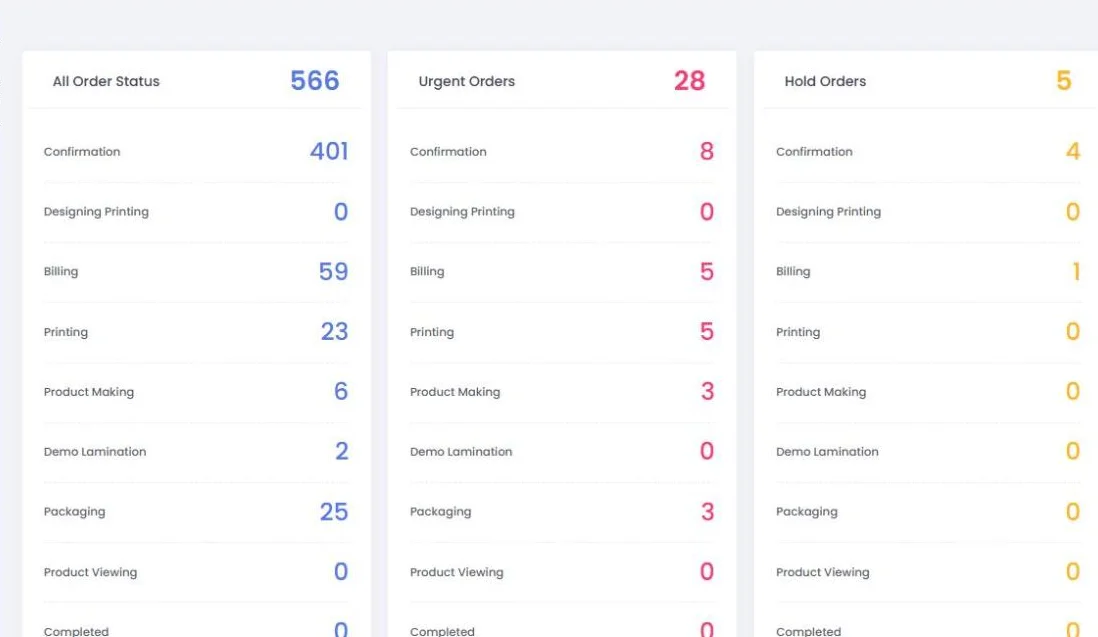
A visiting card job and a hard-bound book do not go through the same steps. Good software lets you set stages per product and move a job forward with a scan, so the status changes at the machine, at the moment the work is done.
4. Is billing in the same system?
When the bill is made from the job, the rate, quantity and extras come along by themselves. Check party-wise price lists, quotes that turn into invoices, credit notes and ledgers. For GST, under e-invoicing the Invoice Registration Portal returns a unique Invoice Reference Number (IRN), a digitally signed e-invoice and a QR code for each registered bill. If your turnover puts you under e-invoicing, make sure the software registers bills directly instead of you uploading files on the portal.
5. Who sees what?
The press operator does not need to see your margins. The accountant does not need to delete orders. Ask how rights are set per person and whether there is a log of who changed what.
How do you track a print job from order to delivery?
Write down the stages your jobs really pass through, in order. For a digital press that might be: order received, artwork check, printing, lamination, cutting, QC, packing, dispatched. An offset job may add plate making and binding. A visiting card job done in 2 days and a book job that takes 10 days will have different lists, and that is fine.
Then make three rules:
- No job starts without a job number and a printed job card.
- Every stage change is recorded with a scan or one click, by the person who did the work.
- Urgent and on-hold jobs are marked on the card and in the system, with a reason for the hold.
With those three rules, the owner and the customer can both see on screen where job 2041 is, without calling the floor.
Where QuickOrders fits for a print shop
QuickOrders is the order-to-bill system we built for photo and album labs, and the same flow fits print shops that work with dealers and repeat customers. It is web-based, so the office, the floor and the owner see the same jobs, and there is a QuickOrders mobile app for the lab team.
You set up your own products with the fields that matter (paper, size, lamination, finishing or anything custom) and pick the production stages each product goes through. Prices can be per unit, per area or per running length, with separate price cards for each dealer or customer. Quotes go out on WhatsApp or email and turn into invoices when the customer confirms.
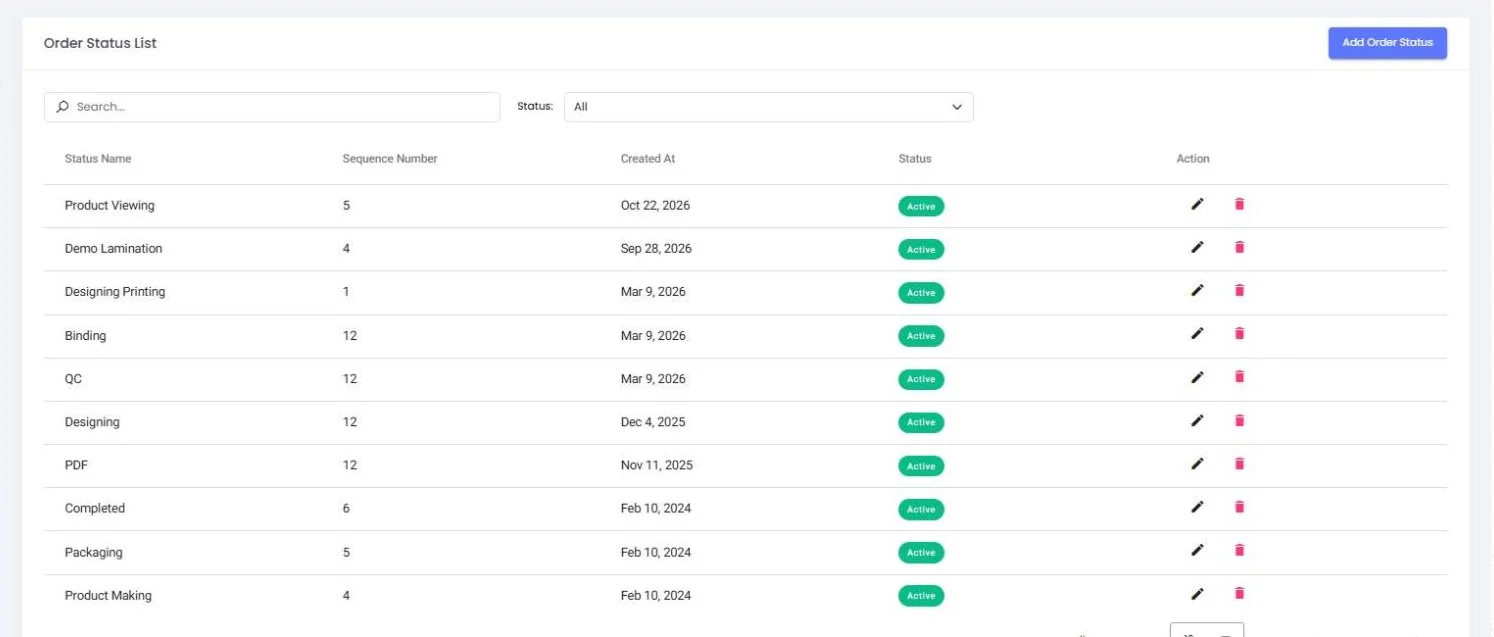
On the floor, the job card prints with your logo and a barcode, and Scan & Next moves a job to its next stage. You can hold a job for a customer who is over their credit limit and release it when they pay. Ready jobs are grouped by customer for dispatch, with courier labels. Bills, GST e-invoices, payment links and ledgers sit in the same system, and customers get WhatsApp and email updates as their job moves. Your staff spend less time typing and answering calls, and the owner, the staff and the customer all see the same status.
The owner can also connect Claude or ChatGPT and ask plain questions such as "Which orders are late?" or "Who owes us money?". The connection is read-only. This short Hindi video follows one order from upload to dispatch:
QuickOrders is not a press-time estimating tool for large offset plants. If your main need is costing a 4-colour job by plates, impressions and make-ready, ask about that in any demo, ours included. For imposition and print-ready files, see PDF Imposer, and for the full set of tools, see our page for print shops.
What to do before you pick any software
You can prepare in a week, and the demo will go much better:
- List your top 10 products and the stages each one goes through.
- Collect the last 30 days of job cards, or whatever you use today, and mark which fields you actually fill in.
- Write down how many price lists you keep (retail, dealer, corporate) and who uses which.
- Note the three questions customers ask most on the phone. Usually it is "is it ready?", "what is the rate?" and "how much do I owe?".
- Decide who will own the setup inside your shop. A new system needs one person who keeps the products, prices and stages up to date.
If album or photo print orders are part of your work, our guide on photo lab order management shows how to move studios off WhatsApp.
Want to see your own jobs in one place? Book a demo of QuickOrders.
Frequently asked questions
What is printing press management software?
It is software that runs the business side of a press: taking orders, pricing and quotes, job cards, production status, dispatch, billing, GST and collections. Larger systems are often called a print MIS.
How can a print shop track jobs from order to delivery?
Give every job a number at the order stage, print a job card with a barcode, and move the job to the next stage with a scan or a click. The owner and the customer then see the same status.
Is Excel enough to manage a printing press?
Excel works for a list of jobs. It breaks down when you need job cards, stage updates from the floor, party-wise prices, GST bills and dues in one place, because each of those lives in a different sheet.
Should printing press software be web-based or desktop?
A web-based system lets the owner, the office, the floor and outside customers or dealers use the same data from anywhere. Desktop software suits a single office but makes customer ordering and remote checks harder.