
Job card software for printing press: format and tips
Job card software for a printing press: what fields a print job card needs, a ready format, how to print job cards from orders and track jobs with barcodes.
Short answer
- A printing job card is the sheet that travels with a job on the floor. It needs the job number, barcode, due date, customer, product, size, quantity, paper, press, finishing, delivery and the stages to tick.
- Job card software prints the card straight from the order, so the specs on the floor always match what the customer approved, and a barcode scan moves the job to its next stage.
- To track jobs from order to delivery, give every job a number, print the card before work starts, and record each stage with a scan, so the owner and the customer see the same status.
Job card software for a printing press prints the job card straight from the order, so the operator gets the right specs and nobody copies them by hand. A good printing job card carries the job number and barcode, due date, customer, product, size, quantity, paper, press, finishing and delivery, plus the stages to tick. Scanning the barcode at each stage lets the owner track the job from order to delivery.
This guide gives you a job card format you can use today, on paper or in software, and shows where job card software for printing press work saves the most time.
What is a job card in a printing press?
The job card is the instruction sheet for one job. It goes to prepress with the file, to the machine with the paper, to finishing and packing, and comes back to the office when the job is dispatched. If the job card is wrong, the job is wrong.
Larger presses call it a job ticket or docket. The print industry even has a standard for it: Job Definition Format (JDF), an XML format maintained by CIP4 that describes job tickets and passes them between prepress, press and finishing systems. Most Indian print shops do not need JDF. But the idea behind it is useful: the job's specs should be written once and travel unchanged to every stage.
In-plant Impressions, a US magazine for in-house print shops, says job tickets are usually the first feature a shop sets up when it moves to print management software.
What should a printing job card format include?
Here is a job card format that works for digital and offset jobs. Keep it on one A5 sheet if you can. A5 fits in a plastic sleeve and stays with the paper stack without getting folded.
| Section | Fields |
|---|---|
| Header | Job number (large), barcode, order date, due date and time, URGENT mark |
| Customer | Name, dealer or direct, contact person, phone |
| Job | Product, number of designs, size, quantity per design |
| Material | Paper type and GSM, sheet size, colours and sides (4+4, 4+0, 1+1) |
| Press | Machine, number of sheets, ups per sheet |
| Finishing | Lamination, UV, cutting, creasing, folding, binding, numbering, packing |
| Delivery | Courier, pickup or own delivery, address |
| Stages | Prepress, printing, lamination, cutting, QC, packing, dispatch, each with a tick and initials |
| Remarks | Anything special, written once, where the operator sees it |
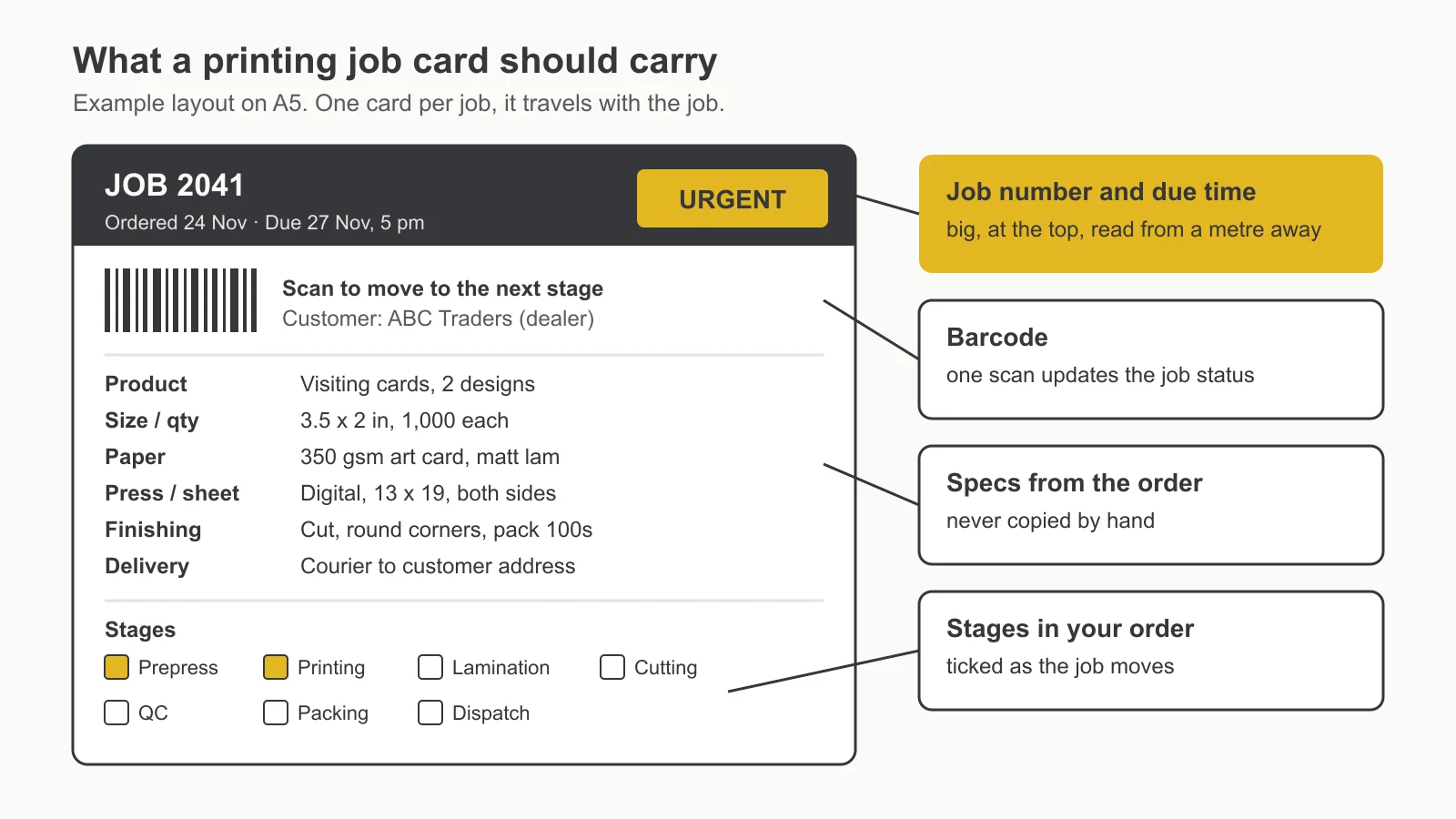
Three habits make a job card format work on a busy floor:
- Put the job number and due time in the biggest font on the card. An operator should read them from a metre away.
- Write sizes the same way every time, width first (for example 3.5 x 2 inch for a visiting card, 297 x 420 mm for A3).
- Leave out what the floor does not need. Rates and margins belong on the quotation, not on the job card.
How do you print a job card from software?
On paper, someone reads the order from the diary or WhatsApp and writes the job card by hand. That is where 300 gsm becomes 350 gsm, or 1,000 copies becomes 100.
With job card software the steps are:
- Enter the order once, at the counter or through a customer portal.
- Print the job card from that order. The specs come from the order, so they match what the customer approved.
- Print in bulk at the start of the shift, for all jobs received since the last batch.
- Reprint when the job changes, and mark the old card as replaced.
When you compare job card software for printing press work, check how much control you have over the card: page size (A4, A5 or custom), which fields print, font size, your logo, the barcode, and whether amounts can be hidden. Also check if the software marks which jobs already have a printed card. In the morning rush, a job without a card is a job nobody starts.
How do barcodes help track print jobs?
A job card with a barcode turns the paper into a tracking tool. At each stage, the operator scans the card and the job moves to the next stage in the system. Nobody has to remember to update a spreadsheet at the end of the day.
This gives you three things:
- The owner sees how many jobs are at each stage without walking the floor.
- The customer gets an answer to "is it ready?" from the office in seconds, or a message when the job moves.
- Late jobs show up early. If a job meant for dispatch in 2 days is still in prepress on day 2, you see it in the morning, not when the customer calls at 6 pm.
For jobs with many parts, such as a book with a cover and inner pages, a barcode per item lets each part move on its own and come together at binding.
Job card software for printing press work with QuickOrders
QuickOrders is the order-to-bill system we built for photo and album labs, and its job cards work the same way for a printing press. Staff can place an order and print its job card in one step. The card prints on A4, A5 or a custom size, and you choose for each field whether it prints, at full or half width, and in which font size and style. You can add your logo, a barcode, a watermark per product, the item image and, if you want, the amounts. The card carries your logo only, with no QuickOrders branding.
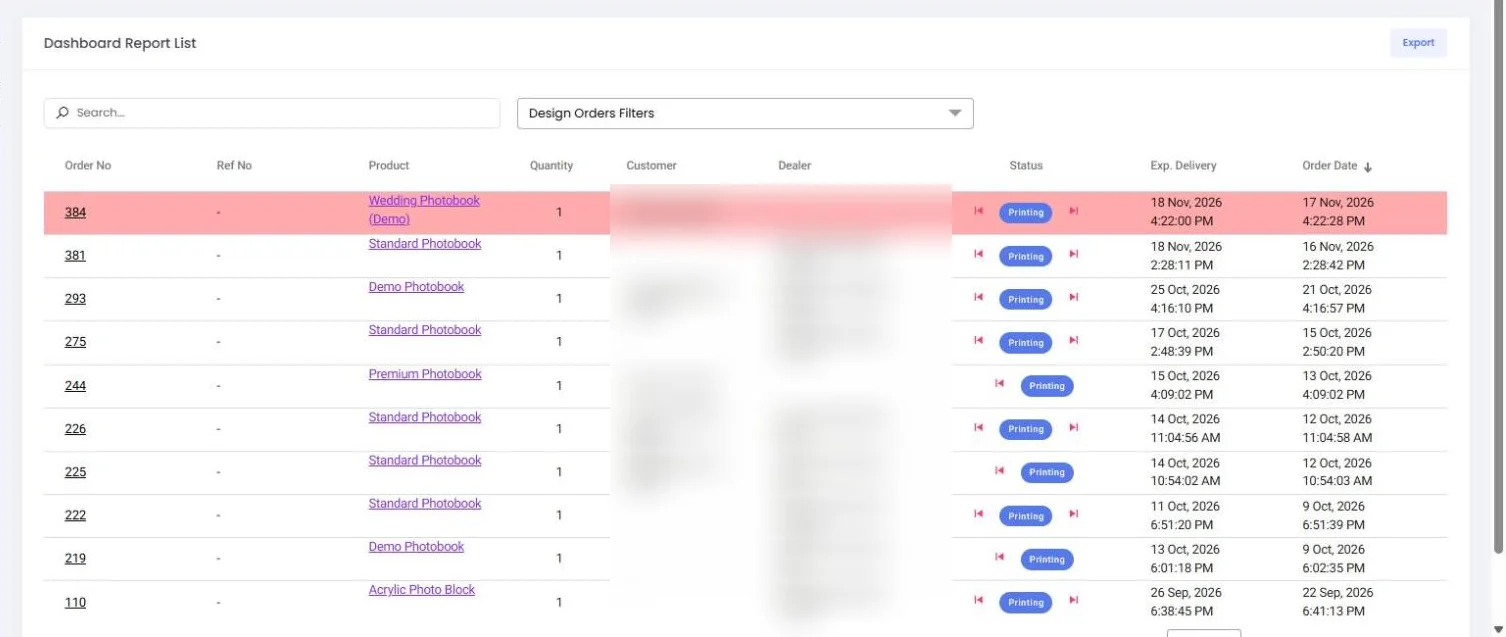
You can print one card, reprint it or print many at once, and printed jobs are marked so nobody misses one. Urgent jobs carry an URGENT stamp on the card. On the floor, Scan & Next moves a job to its next stage with one scan, and from the same screen staff can reprint the card, mark the job urgent or on hold, and add a remark. If you want, a job can move forward by itself the moment its job card is printed.
The stages are yours to set, product by product, so a visiting card and a book each follow their own route. Owners, office staff and customers see the same status, the floor saves time on paperwork, and the owner can manage the press with fewer phone calls. For the wider picture of orders, billing and dues, read our guide to printing press management software.
Common job card mistakes and how to fix them
- Specs copied from WhatsApp. Fix: print the card from the order, never from the chat.
- No due time, only a date. Fix: write "27 Nov, 5 pm". A job due at 10 am and a job due at 6 pm are not the same job.
- One card for a job with several parts. Fix: one barcode per part, or a sub-card for the cover.
- Changes made on the floor in pen. Fix: change the order, reprint the card, and keep the old one in the job file.
- Cards that stay at the machine after the job moves. Fix: the card travels with the paper, always.
If your press also takes photo and album work from studios, see our guide to photo lab order management, and the full set of tools for print shops.
Want to see job cards printed from your own orders? Book a demo of QuickOrders.
Frequently asked questions
What is a job card in a printing press?
It is the paper instruction sheet for one job: what to print, on which paper, how many, how to finish it and by when. Larger presses call it a job ticket or docket, and it travels with the job through every stage.
What should a printing job card format include?
Job number and barcode, order and due date, customer, product, size, quantity, paper and GSM, colours and sides, press, finishing, packing, delivery, remarks, and a row of stages to tick or scan.
How do I print a job card from software?
Enter the order once, then print the job card from that order on A4, A5 or a custom size. Good software lets you choose which fields print, add your logo and a barcode, and print many cards at once.
Should a job card show the price?
Usually not on the floor copy. Operators need specs, not rates, so most presses hide amounts on the job card and keep them on the quotation and the bill.